A collection program that compiles listing details into Excel when you pick a complex
The work of opening each listing and copying it down by hand now runs by selecting a complex of interest and pressing start: listing details are collected automatically and land in two kinds of Excel. It runs as a single executable — no Python installation needed.
Checking listing details for a complex
Before
Opening a screen to check each listing
After
Select a complex and run once · compiled in Excel
Background
Some work starts with a fixed set of complexes of interest. Six places are picked, and you must keep watching how many listings are currently up in those complexes, what their conditions are, and what changed since yesterday.
What we saw on site
To check a single listing, you click it in the list, open the detail, and read the needed fields with your eyes to copy them down. With six complexes, that’s not six rounds — it’s as many as there are listings. And that work starts over from the beginning the next day.
The problem we defined
The problem wasn’t collecting — it was collecting to the end. When listings are requested quickly one after another, the response breaks off partway. If a broken run can’t be joined back at the point it stopped, that day’s collection ends up half-done.
What we built
- Complex selection and collection volume — pick only the complexes you want among the registered ones, and set how many listings to fetch, in a range of 1 to 1,000
- Request interval control — set the wait between listings as a minimum and a maximum (1~30 seconds each), and the program rests for a random duration in between. The default is 2~5 seconds. Not bursting is ultimately what gets the collection to the end
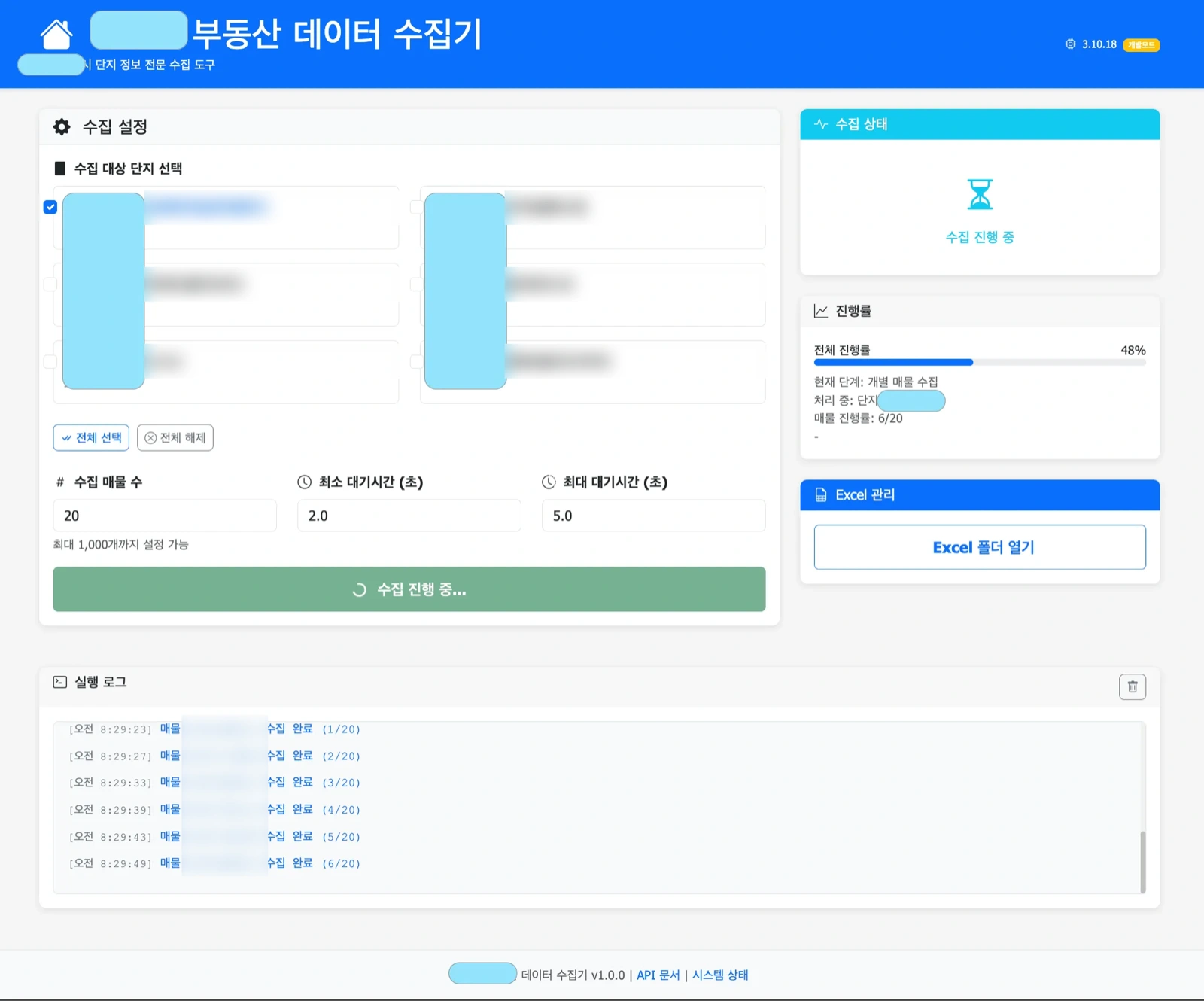
- Progress on screen — overall progress, which step is running now, which listing number it is, and one log line each time an item finishes. In a long task, progress that isn’t visible is indistinguishable from a stopped one
- Stops when failures pile up — when consecutive failures exceed a set count, collection stops. Better than piling up empty data
- Two kinds of Excel — both a ready-to-read summary sheet and a table that expands every field of the fetched raw data. The summary sheet is fixed at 34 columns, filtering out empty columns and duplicate rows. The expanded table’s column count depends on the composition of the collected listings (the two files left in the delivery folder have 428 and 696 respectively)
- Runs without installation — starts from a single executable, with no Python install and no command line. On launch it finds a free port and the browser opens by itself
Results
Select a complex and press the button: listings get collected one by one, and when it finishes, Excel files pile up in the folder. The “Open Excel folder” button on the screen opens that folder right away.
Other work built the same way is gathered under web data collection.
Sources
Run screen of the delivered program