Two presale-info apps, tied together into a single collection tool
Pick the regions and themes you care about, and the app's list gets swept to the end until listing details land in Excel. Instead of photographing the screen and reading the picture, it reads the screen structure the app actually draws.
Checking presale listings across two apps
Before
Opening the app and copying each listing down one at a time
After
Select region/theme and run once · organized in Excel
Background
Presale information lives inside an app. In some cases you can’t see the same thing on the web, and then someone has to open the app and go down the list, checking each listing one at a time.
This job meant watching two apps. One is divided by region (15 regions), the other by theme (apartments, officetels, retail). Their screen layouts differ from each other.
What we saw on site
They were opening the app, tapping a listing, reading the details, and copying the needed fields down one by one.
The list keeps extending the more you scroll. You can’t tell where it ends just by looking at the screen. With fifteen regions it isn’t fifteen rounds — it’s as many as there are listings. And that work starts over from the beginning the next day.
The problem we defined
Handling the two apps as a single tool was the problem.
If you build for one app and then modify it for the other, the one you built first breaks. If you build two separate versions, every fix has to be done twice.
What we built
- Reads the screen structure as-is — not by taking a photo of the screen and recognizing letters. It reads the screen structure the app draws and finds where the wanted items sit. Even if the font or resolution changes, it finds the same spot
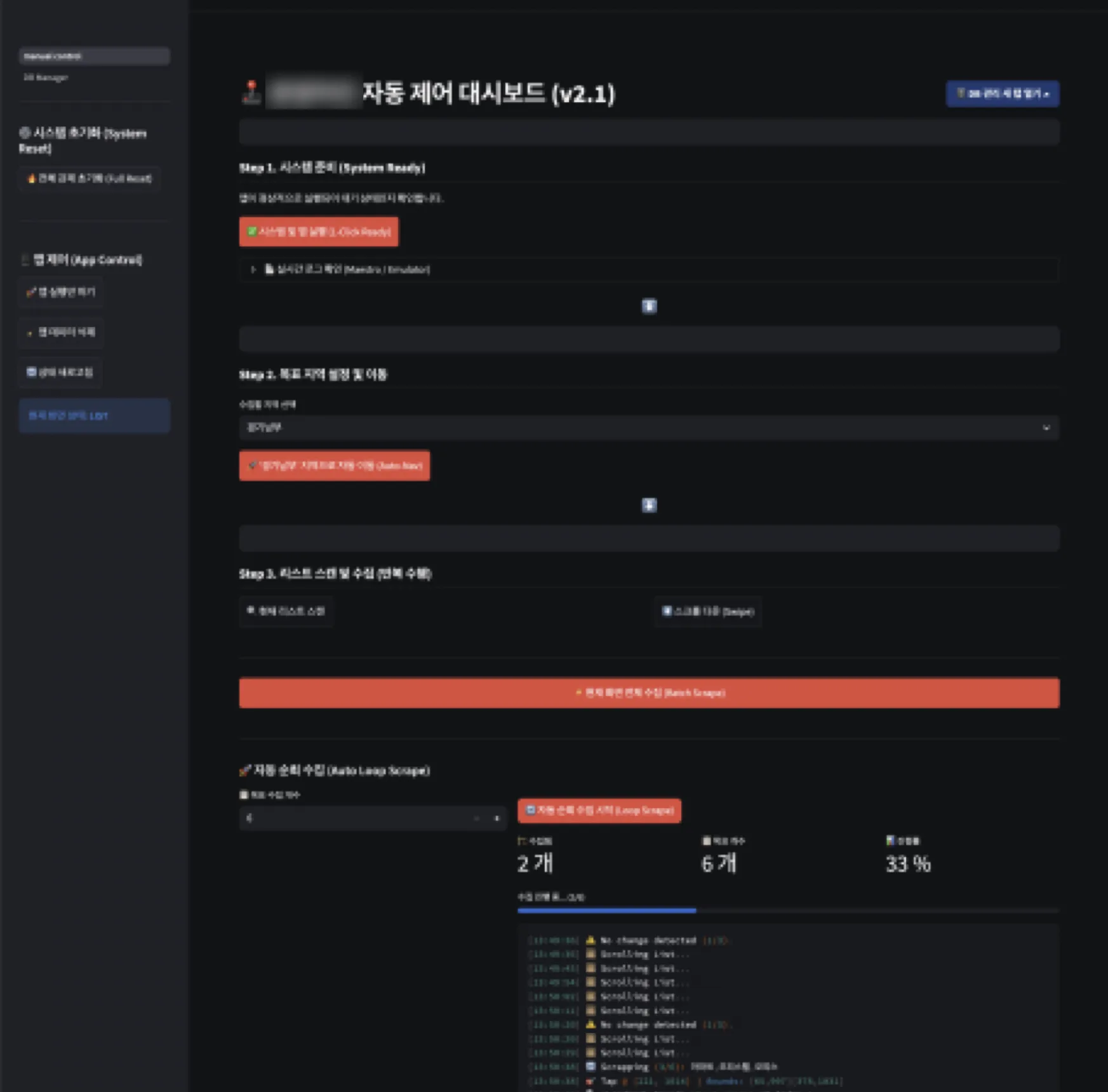
- Pick a target and run — in one app you pick among 15 regions, in the other among three themes. There is one selection screen; only the list changes per app
- Carries on to the end of the list — items not yet shown on screen are waited for by scrolling down little by little. It doesn’t fail right away just because the button isn’t visible yet
- Progress on screen — shows which step it’s on and how many items so far. In a long-running job, progress that isn’t visible is indistinguishable from a stopped one
- The screen stays the same as apps multiply — when you attach one more app, the part built first is left untouched and only the new app’s method is added beside it. Neither what the operator sees nor the order they use changes
Results
Pick a region or theme and run: the list gets collected to the end, and when it finishes, Excel is left behind.
Other work built the same way is gathered under app crawling.
Sources
Delivered code and work plan, and the client's quotation